
Download PdaNet – Android tethering, USB hotspot, free tethering tool
Overview
PdaNet turns your Android smartphone into a reliable, on‑the‑go modem for laptops, netbooks, or any device that can accept a wired network connection. Instead of hunting for public Wi‑Fi hotspots or paying for a separate mobile broadband plan, you simply plug your phone into a computer via a USB cable and let PdaNet handle the rest. The application is lightweight, works with both Windows and macOS desktops, and offers a clean system‑tray icon that lets you monitor connection status at a glance.
While many carriers discourage or even block traditional tethering, PdaNet uses a method that bypasses the usual restrictions, making it a handy solution for travelers, remote workers, and students who need a stable internet link without extra hardware. The software includes optional features such as automatic reconnection, DNS customization with Google DNS, and a network‑icon toggle that appears only when a connection is active. Overall, PdaNet provides a straightforward, secure way to share your phone’s data plan with a computer, ensuring you stay connected wherever you are.
Key Features & Benefits
- USB Tethering Made Simple – Connect your Android device with a standard USB cable and let PdaNet instantly create a network bridge.
- Cross‑Platform Support – Native clients are available for Windows 7/8/10/11 and macOS 10.12 and later.
- Auto‑Connect Option – The software can be set to automatically establish a connection each time the phone is plugged in.
- Custom DNS Configuration – Switch to Google DNS or any preferred DNS server directly from the desktop client for faster resolution.
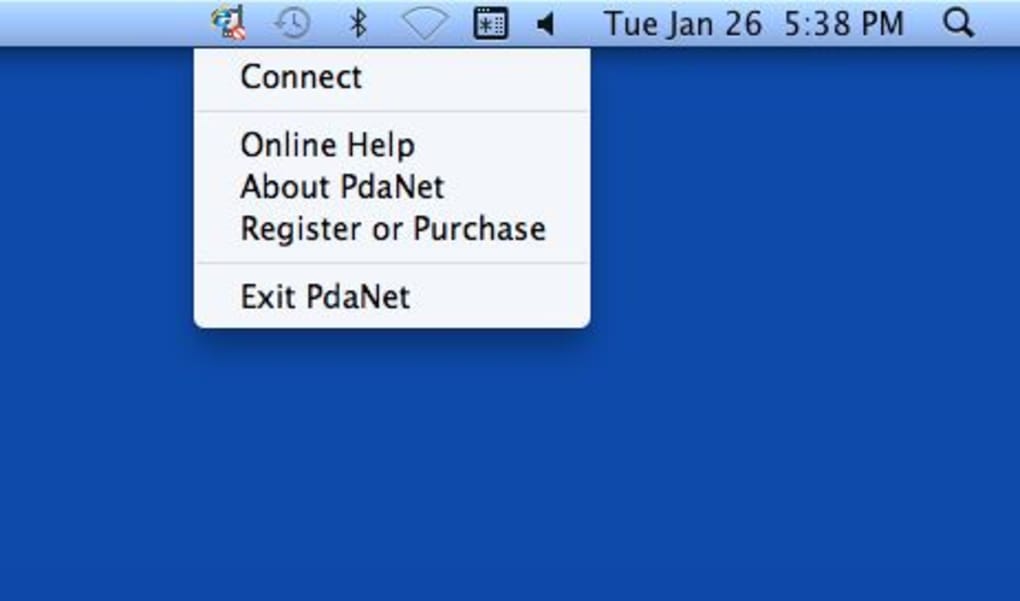
- System‑Tray Indicator – A discreet icon shows real‑time connection status and offers quick access to settings.
- Low Resource Footprint – The desktop client runs in the background with minimal CPU and memory usage.
- Secure Data Transfer – All traffic is routed through the phone’s native data channel, avoiding third‑party Wi‑Fi vulnerabilities.
- Driver‑less Installation (Windows) – The installer includes necessary drivers, eliminating extra steps for most users.
These features combine to give users a dependable tethering experience that feels native to both the phone and the computer. Because the connection is wired, you avoid the latency spikes and interference that can plague Wi‑Fi hotspot solutions, especially in crowded urban environments. Additionally, the ability to toggle DNS settings means you can bypass ISP throttling or improve page‑load times without altering router configurations. For professionals who need a stable link for video calls, cloud access, or large file transfers, PdaNet offers a level of consistency that many wireless alternatives simply cannot match.
Installation, Usage & Compatibility
Supported Desktop Operating Systems
- Windows 7, 8, 10, 11 (both 32‑bit and 64‑bit)
- macOS 10.12 Sierra and later (including Apple Silicon via Rosetta 2)
Step‑by‑Step Installation
1. Download the desktop client from the official PdaNet website. Choose the Windows or macOS installer based on your computer.
2. Run the installer. The wizard will guide you through standard steps – accept the license agreement, select an installation folder, and let the program install any required USB drivers (Windows) or kernel extensions (macOS).
3. Install the mobile app on your Android device. Open the Google Play Store, search for “PdaNet+” (the free version) or “PdaNet Pro” for additional features, and tap Install.
4. Connect the phone to the computer using a USB cable. Ensure USB debugging is disabled; PdaNet works with standard charging cables.
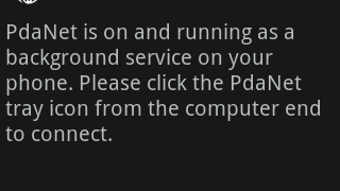
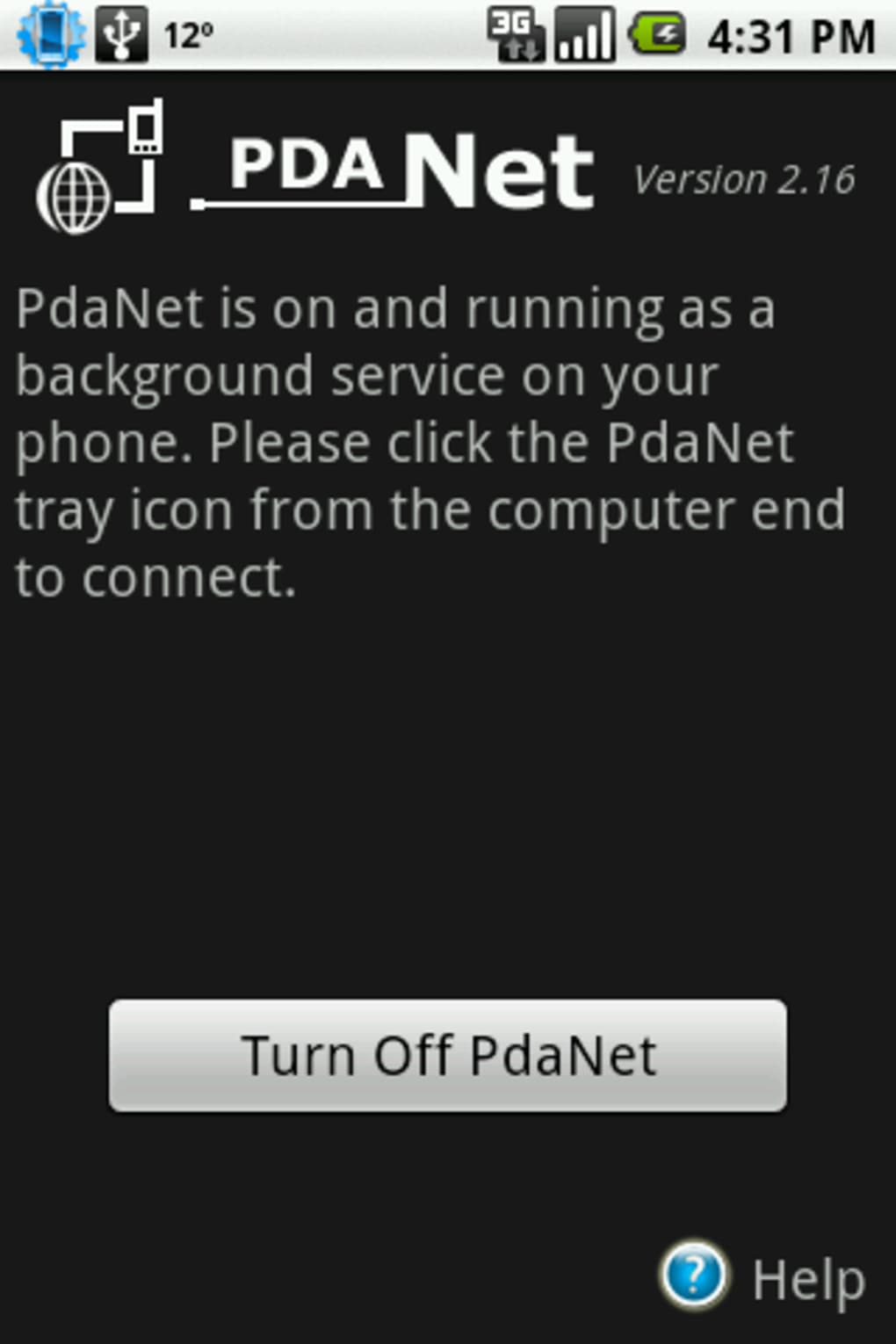
5. Launch the desktop client. The system‑tray icon will appear, indicating that the software has detected your phone. Click the icon to open the control panel.
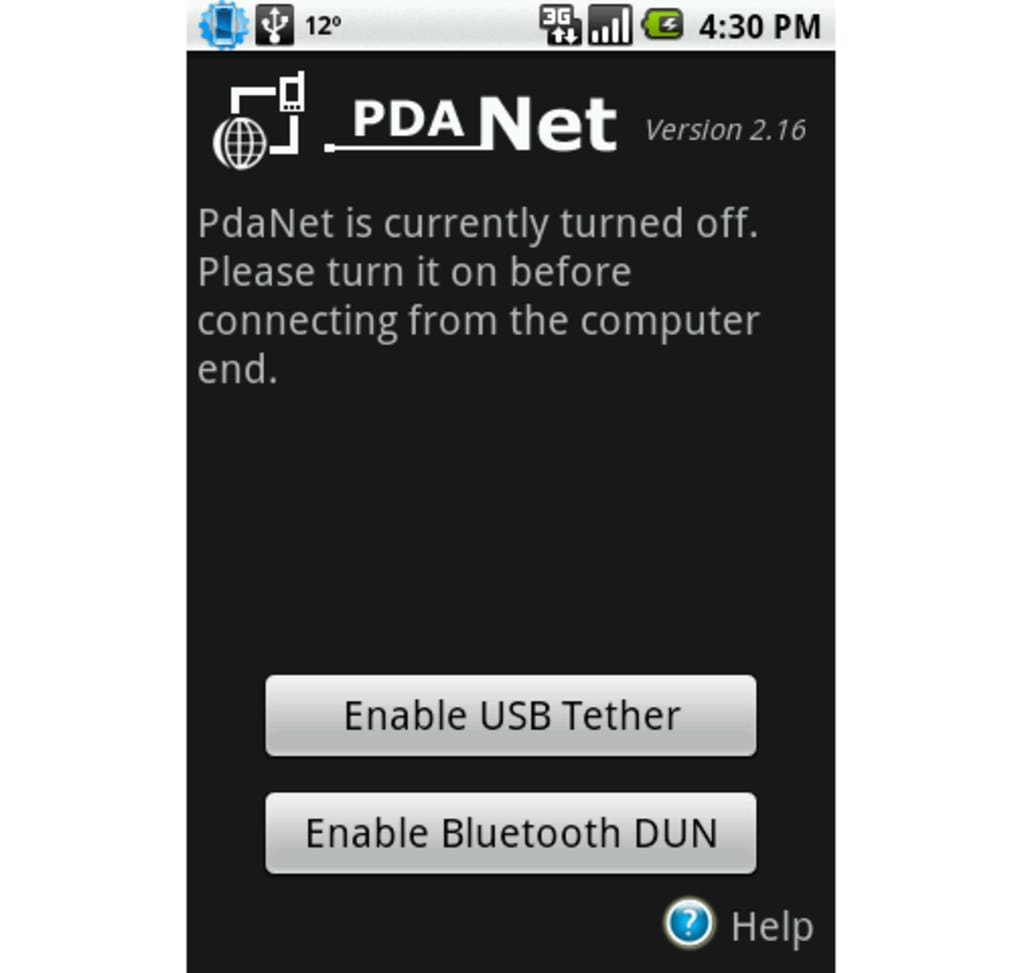
6. Enable tethering from the mobile app – navigate to “USB Tether” and turn it on. The desktop client should instantly register a new network adapter and assign an IP address.
7. Verify connectivity by opening a web browser on your computer. If the page loads, you’re online; if not, revisit the settings panel to check DNS or auto‑connect options.
Tips for a Smooth Experience
– Keep your phone charged. Although USB provides power, heavy data usage can drain the battery quickly. Consider using a powered USB hub if you plan extended sessions.
– Check carrier policies. Some operators treat tethering as a separate service and may throttle speeds or charge extra fees. Review your contract before frequent use.
– Update regularly. Both the desktop and mobile components receive periodic patches that improve compatibility with newer Android releases and operating‑system updates.
– Use a high‑quality cable. Cheap or damaged cables can cause intermittent connections, leading to dropped sessions.
Pros, Cons, FAQ & Final Verdict
Pros
- Simple USB tethering without additional hardware.
- Works on both Windows and macOS platforms.
- Low CPU and memory consumption.
- Custom DNS and auto‑connect options enhance usability.
- Secure, wired connection reduces exposure to public Wi‑Fi threats.
Cons
- Requires a physical USB cable; not suitable for completely wireless scenarios.
- Some carriers may limit or block tethering, requiring users to verify contract terms.
- Free version lacks advanced features such as Bluetooth tethering or hotspot sharing.
- Initial driver installation on Windows may trigger security prompts for some users.
Frequently Asked Questions
Can I use PdaNet with a Windows 10 laptop?
Yes. PdaNet supports Windows 7, 8, 10 and 11. The installer includes the necessary drivers, and the application works with both 32‑bit and 64‑bit versions.
Do I need to enable USB debugging on my Android phone?
No. PdaNet works with the standard USB connection mode. USB debugging is not required and can remain disabled for security reasons.
Is the connection speed the same as my phone’s mobile data?
The tethered connection uses the same cellular data plan, so speeds are comparable to what you experience on the phone itself, subject to network conditions and carrier throttling.
Can I use PdaNet on a Mac with an Apple Silicon processor?
Yes. The macOS client runs under Rosetta 2 on Apple Silicon, providing the same functionality as on Intel‑based Macs.
Is there a limit to how much data I can tether?
PdaNet itself does not impose a data cap. However, your mobile carrier may enforce limits or charge extra fees for tethering beyond a certain threshold.
Conclusion & Call to Action
For anyone who needs a quick, dependable way to bring internet connectivity from an Android phone to a laptop, PdaNet remains one of the most practical tools on the market. Its straightforward USB tethering workflow, low resource usage, and cross‑platform support make it an attractive alternative to bulky mobile hotspots or expensive data‑only SIM cards. While the free version covers the essential features, power users may consider the Pro upgrade for Bluetooth and Wi‑Fi hotspot capabilities.
If you’ve been searching for a secure, low‑cost solution to stay online while traveling, working remotely, or simply avoiding unreliable public Wi‑Fi, download PdaNet today and experience hassle‑free tethering in minutes.







